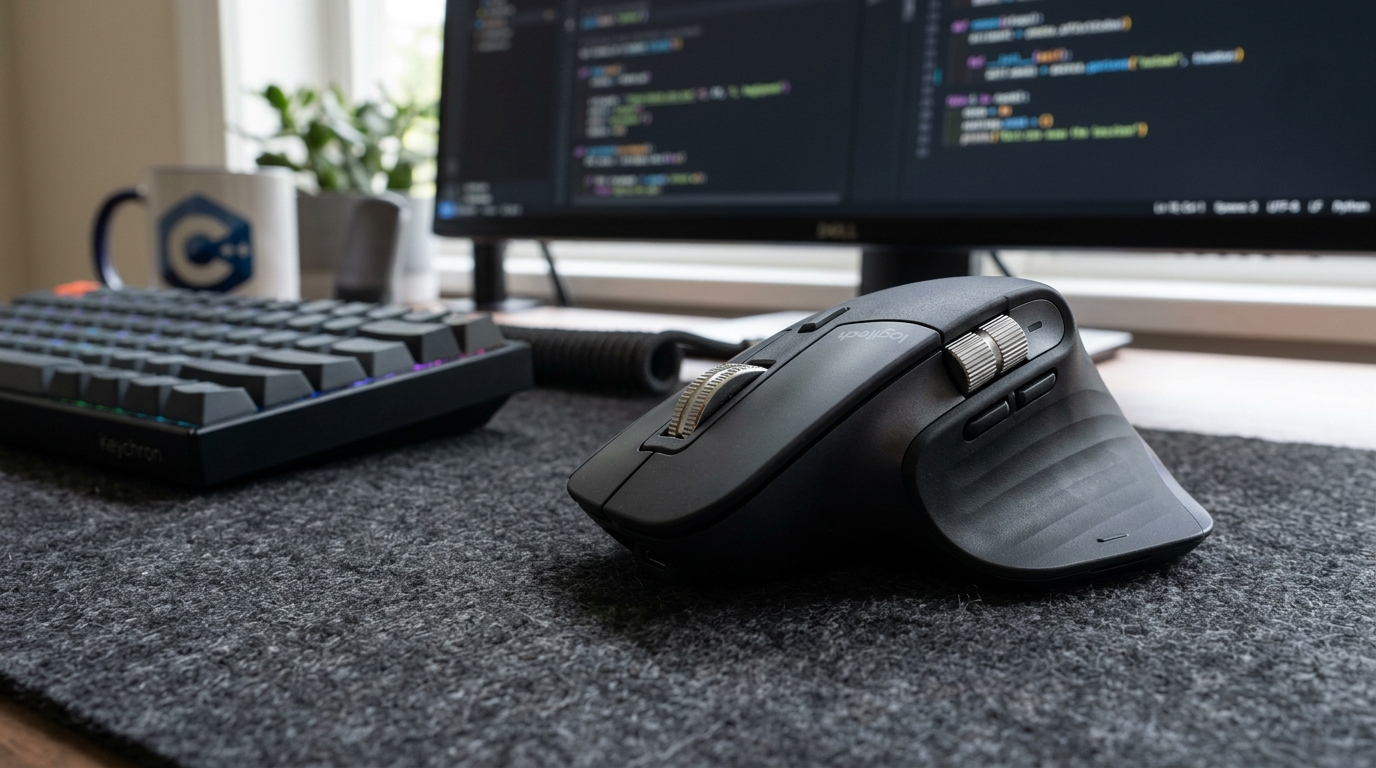
Hardware-Level Battery Drain & Power Draw Debugging: How a Wattage-Display Cable Reveals Android App Wakelock Spikes
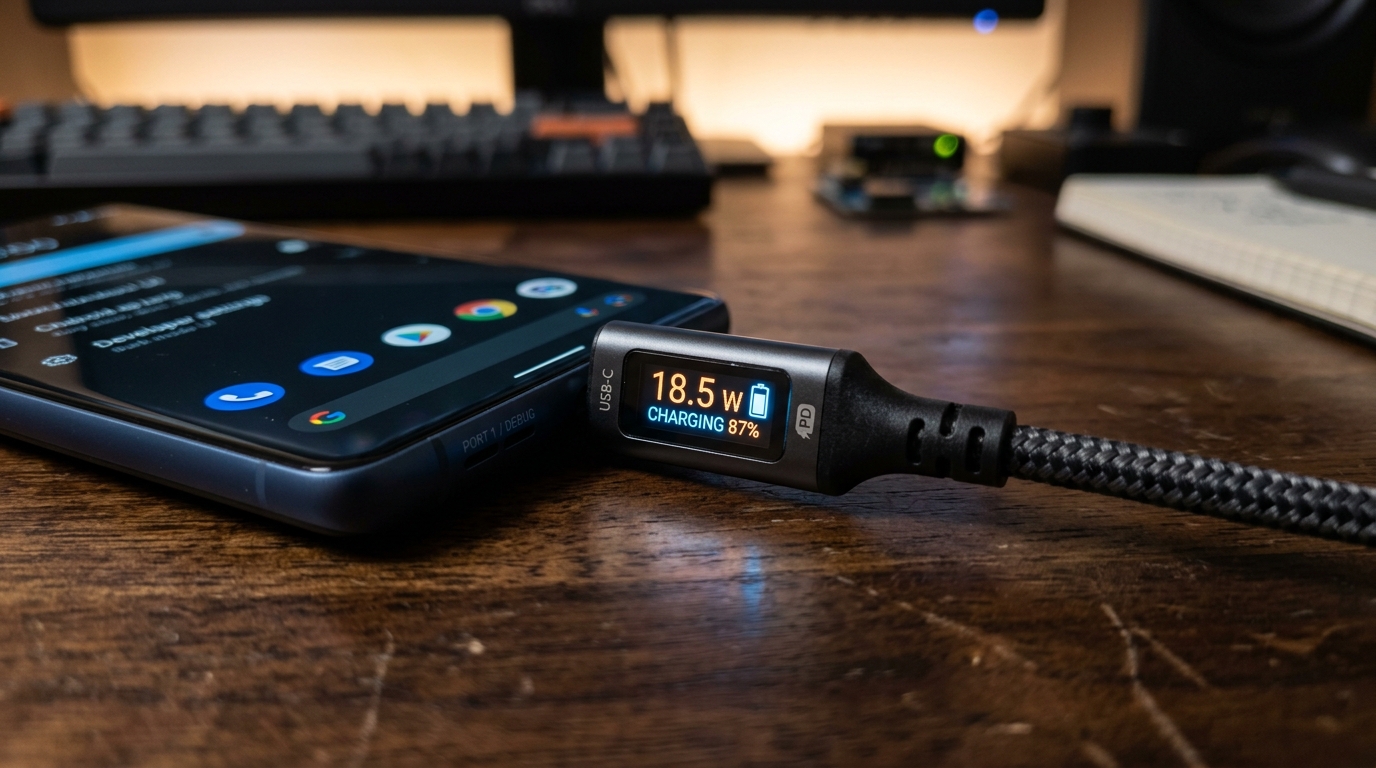
Profiling battery usage in Android Studio can be abstract. Watching real-time wattage drop from 18W to 1.2W on an inline LED readout gives developers instant visual proof of background sleep states.

Alex Rivera
Mobile Architecture & QA Lead
Buy This Product on Amazon
Fast, trackable shipping with official manufacturer warranty & 30-day return policy.
What We Loved (Pros)
- Real-time inline digital LED display reveals exact wattage draw down to 0.1W precision
- Instant visual confirmation when background services release wakelocks and enter Doze mode
- Supports full 100W (20V/5A) Power Delivery for laptops, tablets, and testing handsets
- Heavy-duty zinc alloy connector housings and high-density braided nylon sheath resist bench wear
- Built-in E-Marker chip safely manages voltage negotiation without corrupting connected hardware
Room For Improvement (Cons)
- Data transfer rate is limited to USB 2.0 (480 Mbps); not intended for multi-gigabyte video pulls
- Display refresh rate updates roughly once every second, smoothing over microsecond voltage ripples
- Connector head is slightly longer than standard cables to accommodate the display circuitry
Key Technical Specifications
Amazon Gaming Week Specials: Verified Lightning Discounts
Upgrade Your Console Today - Best Amazon Prices

Google Play Console has zero tolerance for apps that drain user batteries. Under the official Android Vitals threshold, if your production release exhibits excessive background wake locks (defined as more than 0.10% of battery sessions with stuck wake locks longer than an hour), Google Play marks your application as failing platform performance benchmarks. The penalty is immediate: reduced algorithmic visibility in Play Store recommendations, warnings to potential installers, and plummeting star ratings.
The standard way to diagnose battery consumption is through software tools: running Android Studio’s Energy Profiler or dumping batterystats logs and parsing them with Battery Historian. While these tools are essential for deep stack traces, they suffer from a major drawback: they are completely disconnected from what the physical hardware is actually doing on your desk.
An unexpectedly simple, inexpensive tool solves this visibility gap: the Baseus 100W USB-C Cable with an integrated LED Digital Power Display. By placing a real-time wattage meter directly on the cable connector plugged into your test phone, you get immediate physical verification of whether your application is truly allowing the device to enter low-power sleep states.
The Physics of Wakelock Debugging at the Hardware Level
When an Android smartphone like the Google Pixel 8 is connected to power with its screen turned off, the charging wattage is governed by two forces:
- The battery’s charging curve (negotiated via USB Power Delivery).
- The active power consumption of the CPU, GPU, display, and cellular radios.
Once a test device reaches a steady charge state (or when powered via a baseline supply), locking the screen should cause the total power draw to drop sharply. In a well-behaved app, CPU cores wind down, background worker threads finish their synchronization tasks, and power draw stabilizes at a minimal baseline.
Now consider what happens when a developer accidentally introduces a runaway loop in a foreground service, forgets to release a PowerManager.WakeLock, or leaves a high-accuracy GPS location listener active in the background. On the Baseus cable’s digital readout, the wattage tells the story instantly:
- Healthy Background Behavior: Screen locks → wattage drops from 12.4W down to 2.1W within three seconds, settling into a stable trickle.
- Rogue Wakelock / Runaway CPU: Screen locks → wattage drops to 7.8W and stays pinned there indefinitely. You immediately know, without opening a single log file, that an active background thread is preventing the system SoC from entering deep sleep.
Why Inline Hardware Feedback Beats Software Profiling Alone
Software profilers introduce their own overhead. Running Android Studio’s Energy Profiler requires an active debug socket that can inadvertently keep certain device subsystems awake, creating an observer effect that skews your readings.
| Aspect | Android Studio Software Profiler | Baseus Hardware Display Cable |
|---|---|---|
| Feedback Speed | Requires compiling, launching, recording trace, and analyzing timeline. | Instantaneous 1-second visual update directly in front of your eyes. |
| Observer Effect | Profiling overhead can alter CPU sleep states and memory allocations. | Zero software overhead; passively reads physical voltage and current. |
| Thermal Handshake | Does not show raw battery thermal throttling wattage drops. | Shows real-time step-down when battery controller reduces charging speed. |
| Release Build Testing | Cannot profile minified, non-debuggable production APKs easily. | Works identically on release APKs, production store builds, and debug builds. |
Practical QA Scenarios for the Baseus Cable
1. Testing Android Doze Mode and App Standby
To verify that your app respects Android’s Doze mode, you can trigger deep idle via ADB terminal commands while watching the Baseus display:
# Force the device into deep Doze mode
adb shell dumpsys deviceidle force-idle
As soon as you execute this command, the wattage readout on the Baseus cable should immediately dip to its minimum floor. If the wattage remains elevated, an unexempted background process is actively violating Doze rules, putting your app at risk of high Android Vitals crash and battery penalties.
2. Monitoring Battery Draw on Mobile Power Banks
When running mobile field tests away from the desk, pairing this cable with a high-output battery like the Anker Prime 20,000mAh Power Bank gives you dual confirmation of total capacity drawn versus instantaneous device power draw.
3. Protecting Test Devices from Port Strain
Because the connector housing of the Baseus cable contains the digital display logic, it is slightly longer and heavier than a standard rubber cable end. To avoid placing lateral torque on your testing smartphone’s USB-C port, we strongly recommend resting the device on an adjustable stand with a dedicated cable cutout. This allows the cable to hang naturally without prying against the internal port pins.
Important Limitations to Keep in Mind
While the Baseus display cable is an indispensable sanity-check tool, it is not an oscilloscope:
- USB 2.0 Data Transfer Speeds: The internal wiring reserves data lines for standard USB 2.0 (480 Mbps). It is completely fine for standard ADB debugging, logcat streaming, and APK installs, but you should not use it for multi-gigabyte 4K video exports from your device.
- 1-Second Display Refresh: The digital readout updates roughly once per second. It will easily catch sustained battery drain and wake locks, but it will not register microsecond voltage spikes. For microsecond analysis, professional lab hardware meters are still required.
Frequently Asked Questions
Does the cable's built-in LED display consume significant power?
No. The micro-controller and tiny LED readout draw less than 0.05W of power, which is imperceptible and does not affect the accuracy of the reading.
Can this cable charge my developer laptop as well as test phones?
Yes. The cable is fully rated for 100W (20V/5A) Power Delivery with an integrated E-Marker chip. It will happily charge a 16-inch MacBook Pro, Dell XPS, or ThinkPad at maximum speed when plugged into an appropriate high-wattage wall brick or dock.
Will the display work with any USB-C port?
Yes. The cable reads standard USB PD and Quick Charge protocols across all compliant USB-C wall chargers, power banks, and PC docks, including the Anker 555 Hub.
Final Assessment
Catching battery drain bugs after releasing an app to millions of users on Google Play is an expensive mistake. For less than fifteen dollars, the Baseus 100W Digital Display USB-C Cable provides an always-on, hardware-level diagnostic window into your app’s real power consumption. It is one of the smartest, most practical accessories an Android developer can keep on their desk.
VERIFIED AMAZON AFFILIATE LINK
Ready to upgrade your gaming setup?
Click below to lock in the lowest guaranteed Amazon price, check customer reviews, and claim free Prime shipping.
Check Price & Buy on Amazon ($14.99)Related Hardware & Game Guides on ReviewSeen
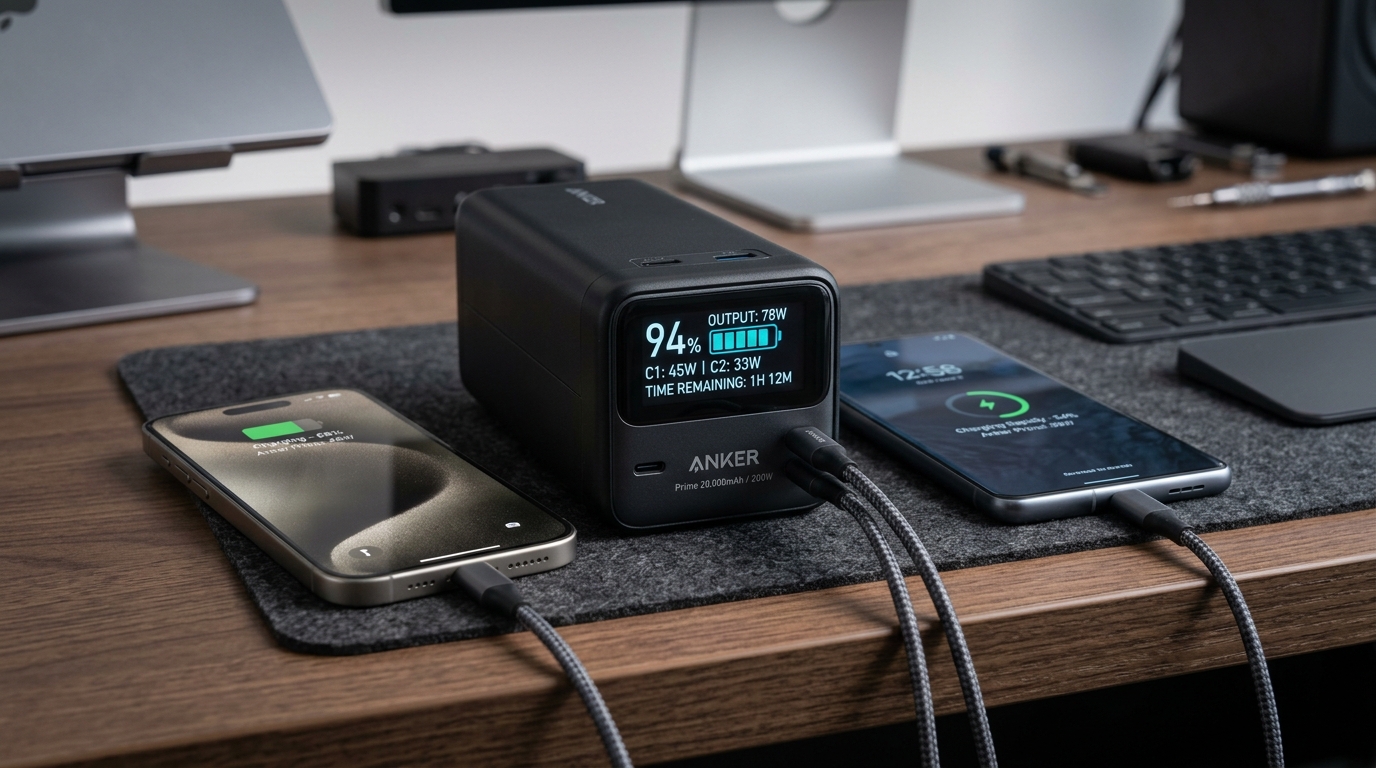
Field-Testing Location Tracking & Background Sync: The Power Bank Setup Android QA Teams Actually Need
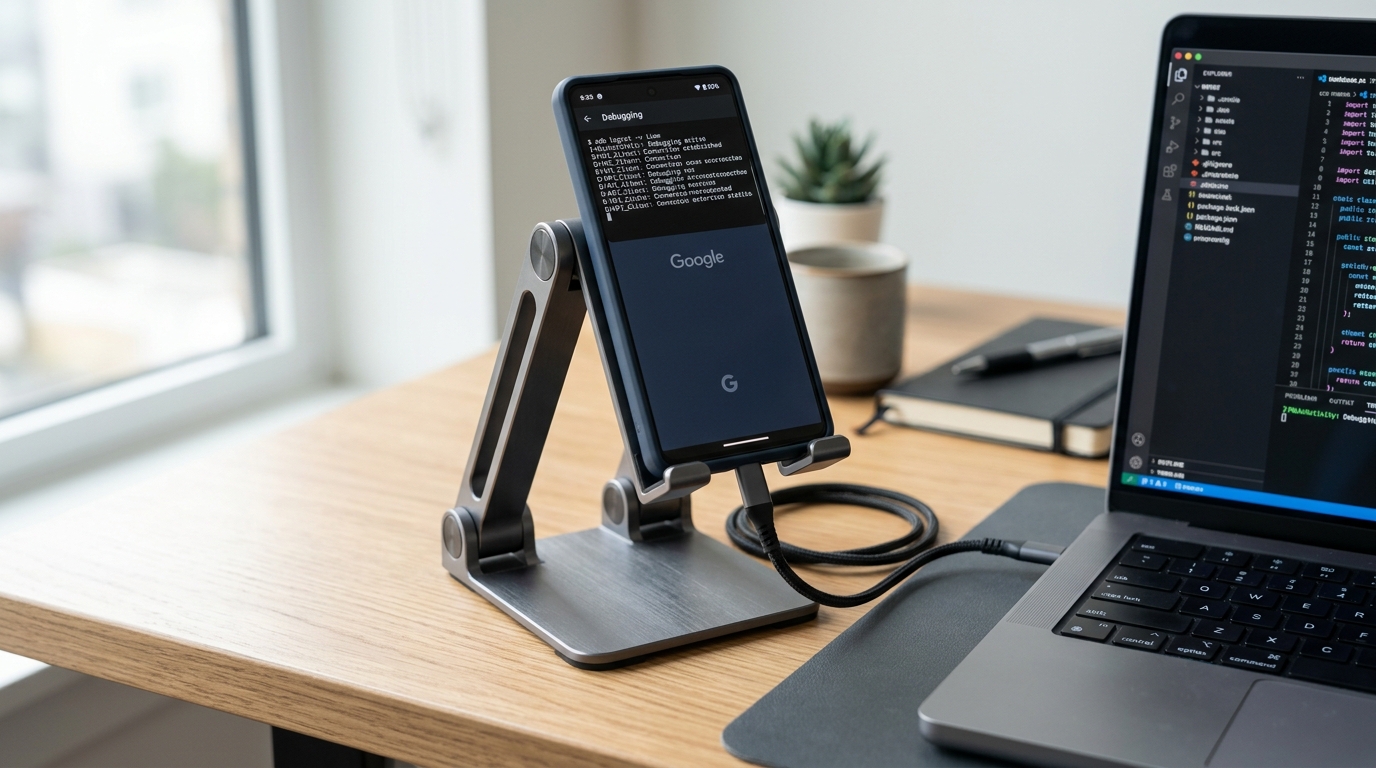
Preventing Cable Strain and False Touch Events: A Heavy-Duty Desktop Stand for Hands-Free ADB Debugging
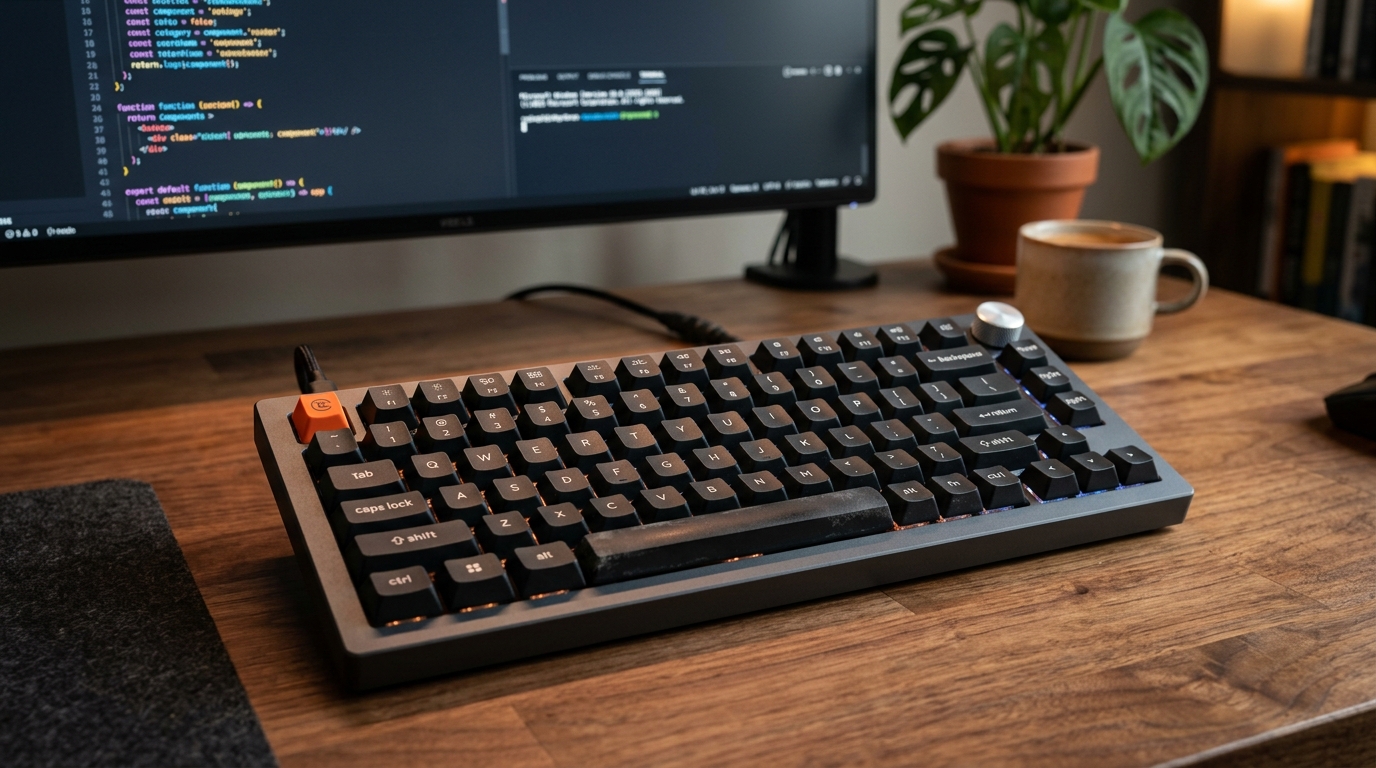
Optimizing the Build-Test-Debug Loop: Mapping Android Studio Hotkeys with the Keychron V1 QMK/VIA Keyboard