Solving the 200GB Android Studio SDK and Gradle Cache Bottleneck: External SSD Performance for Android Engineers
When your laptop's internal drive chokes on 15 AVD system images and 80GB of Gradle build cache, moving your Android SDK to a 1,050 MB/s rugged drive is the cheapest productivity upgrade available.

Alex Rivera
Mobile Architecture & QA Lead
Buy This Product on Amazon
Fast, trackable shipping with official manufacturer warranty & 30-day return policy.
What We Loved (Pros)
- Blazing fast sequential speeds up to 1,050 MB/s read and 1,000 MB/s write over USB 3.2 Gen 2
- Durable rubber elastomer shell with IP65 water and dust resistance survives daily laptop bag transport
- Thermal guard dynamic throttle keeps sustained multi-gigabyte build artifact transfers consistently cool
- Instantly frees 150GB to 300GB of precious internal laptop SSD capacity
- Zero moving parts and drop-proof up to 9.8 feet protects mission-critical offline project repositories
Room For Improvement (Cons)
- Included USB-C cables are relatively short (approx. 7 inches), requiring the drive to sit close to laptop ports
- Thick rubber bumper makes it slightly bulkier than the ultra-slim standard Samsung T7
- Requires basic terminal know-how to configure symbolic links for Android SDK and Gradle directories
Key Technical Specifications
Amazon Gaming Week Specials: Verified Lightning Discounts
Upgrade Your Console Today - Best Amazon Prices

Modern Android app development is notoriously brutal on workstation storage. You buy a sleek laptop with a 512GB internal solid-state drive thinking you have plenty of room for several years of work. Six months later, your operating system pops up an urgent warning: "Your startup disk is almost full. Less than 12GB of free space remaining."
You open a disk analyzer and discover the culprits eating your drive alive:
- The Android SDK Directory: 80GB to 120GB spread across build tools, NDK toolchains, and platform APIs from API 26 through API 35.
- Android Virtual Device (AVD) Images: Each Android emulator snapshot commands 10GB to 18GB of uncompressed disk space. Keep five different target devices installed, and that's an instant 75GB gone.
- The Gradle Cache Directory (
~/.gradle/caches): Multiple gigabytes of transformed dependencies, compiled JARs, and incremental build snapshots that quietly multiply with every branch switch.
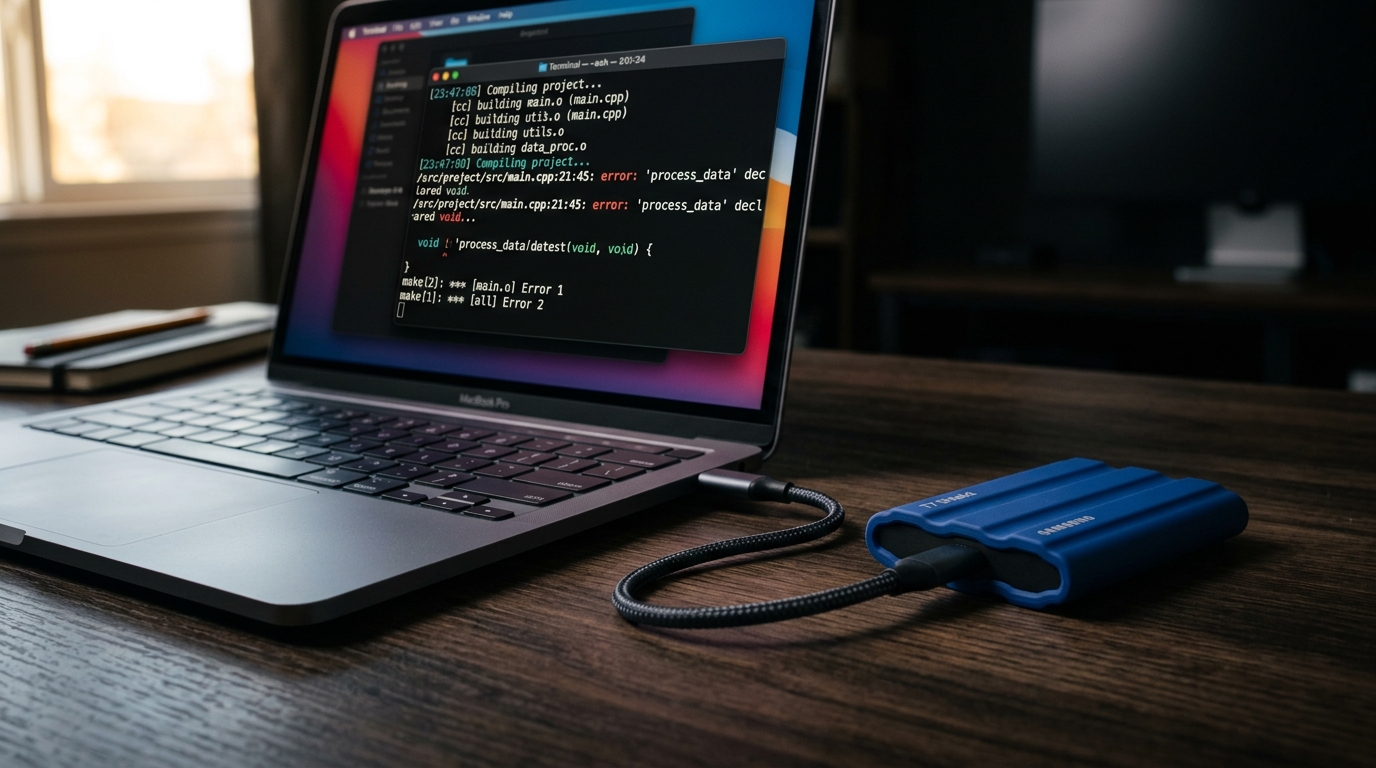
Upgrading an internal laptop drive is either void-warranty surgery or physically impossible on modern soldered-flash machines. The most practical, reliable fix is offloading these massive development directories to an ultra-fast external drive. After extensive testing under sustained build loops, the Samsung T7 Shield 1TB Portable SSD stands out as the definitive storage workhorse for Android engineers.
Why Read/Write Speeds Dictate Your Build Times
Many developers hesitate to move their Android SDK or project files to an external drive because they fear compile times will plummet. That fear was justified in the days of spinning mechanical hard drives or cheap USB 2.0 thumb drives that choked on thousands of tiny Java/Kotlin source files.
The Samsung T7 Shield operates over a full USB 3.2 Gen 2 (10 Gbps) protocol, delivering real-world sequential transfer speeds up to 1,050 MB/s read and 1,000 MB/s write. More importantly for software compilation, its random 4K read and write performance easily saturates the demands of the Gradle daemon.
When compiling a multi-module Android project with 40+ Gradle submodules, the build system reads thousands of class files and writes compiled Dalvik bytecode (DEX files) in rapid succession. On a slower drive, the disk queue depth backs up, causing the CPU to sit idle waiting for I/O operations to complete. With the T7 Shield connected directly to a high-speed laptop port or through a quality 10Gbps USB-C dock, clean build times remain virtually indistinguishable from internal NVMe storage.
How to Safely Offload Your Android Toolchains to the T7 Shield
Moving your tools to the Samsung T7 Shield does not require breaking your existing Android Studio configuration. Here is the practical workflow used by engineering teams:
Step 1: Relocating the Android SDK
Copy your existing sdk folder (typically located at ~/Library/Android/sdk on macOS or C:\Users\Username\AppData\Local\Android\Sdk on Windows) directly to the root of your formatted T7 Shield. Once copied, open Android Studio, navigate to Settings > Languages & Frameworks > Android SDK, and simply update the Android SDK Location path to point to the external drive.
Step 2: Moving Heavy AVD Virtual Devices
By default, Android Studio stores emulator snapshots inside your user directory under .android/avd. You can move this entire folder to the T7 Shield and create a symbolic link (symlink) in your home directory pointing to the external drive:
# Example for macOS/Linux terminal
mv ~/.android/avd /Volumes/T7_Shield/Android_AVD
ln -s /Volumes/T7_Shield/Android_AVD ~/.android/avd
The Android emulator boots and runs with zero knowledge that its 15GB disk image lives on the external SSD, instantly freeing massive gigabytes of internal storage.
Step 3: Pointing the Gradle User Home
To offload downloaded Maven dependencies and transform caches, you can configure your global GRADLE_USER_HOME environment variable to point to a folder on the T7 Shield. This ensures that every third-party library downloaded across all your repositories stores its cached artifacts externally.
Thermal Endurance: Why the "Shield" Model Matters
Standard pocket SSDs often use thin aluminum enclosures that get scorching hot during prolonged file transfers, eventually triggering thermal throttling that drops speeds to a sluggish 150 MB/s. That is a disaster when you are rebuilding a massive codebase or copying multiple 20GB emulator system images.
The T7 Shield features a thick, ribbed rubber elastomer overmold and advanced dynamic thermal guard firmware. Even when subjected to 30 minutes of continuous heavy random writes during automated test artifact dumps, the internal flash controller stays below critical thermal throttling ceilings. Furthermore, the IP65 rating against rain and dust means you can toss it into a messy backpack without worrying about stray crumbs or rain destroying your offline project repositories.
Workflow Integration: Pair with High-Productivity Hardware
For mobile engineers working from coffee shops or collaborative spaces, combining the T7 Shield with a compact setup transforms portable laptops into desktop-class workstations. Connecting your external storage alongside an ARZOPA portable display gives you both the storage capacity and the visual canvas needed to stream heavy logs without bogging down your internal drive.
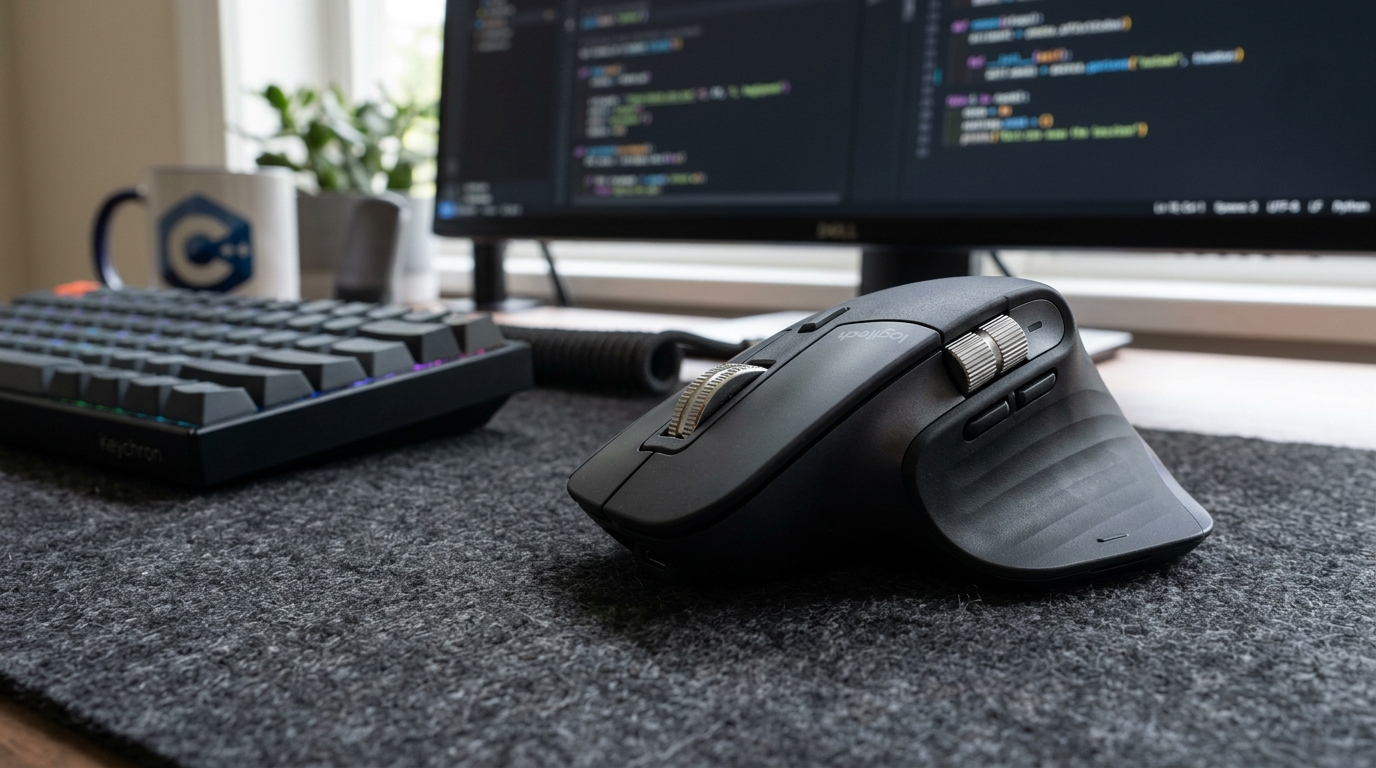
And when you're executing repetitive build commands and navigating wide codebases, an ergonomic setup featuring a Logitech MX Master 3S mouse and a programmable Keychron V1 keyboard ensures that your fingers keep pace with your high-speed SSD.
Frequently Asked Questions
Can I leave the T7 Shield permanently plugged in to my laptop?
Yes. The drive draws minimal idle power and automatically drops into low-power sleep states when your computer is locked. It does not generate significant heat when idle.
What file system format should I use for Android development?
If you work exclusively on macOS, format the drive as APFS for the fastest file cloning and snapshot capabilities. If you work on Windows, use NTFS. If you switch between both operating systems, use exFAT, though keep in mind that native POSIX file permissions are best preserved using your primary OS's native file system.
What happens if I accidentally unplug the drive while Android Studio is running?
If the drive is disconnected during an active Gradle build, the build will fail with an I/O exception, but your source code repository will remain intact. Simply plug the drive back in and re-run the build task. We recommend keeping your active Git project repository on your internal drive and using the T7 Shield specifically for the SDK, AVDs, and build caches.
Final Assessment
Running out of internal SSD space is one of the most frustrating productivity killers in modern Android development. Rather than spending thousands of dollars upgrading your workstation, the Samsung T7 Shield 1TB Portable SSD provides a rugged, 1,050 MB/s external sanctuary for heavy SDKs, Gradle artifacts, and emulator images. It is one of the highest-ROI hardware upgrades an Android developer can purchase.
VERIFIED AMAZON AFFILIATE LINK
Ready to upgrade your gaming setup?
Click below to lock in the lowest guaranteed Amazon price, check customer reviews, and claim free Prime shipping.
Check Price & Buy on Amazon ($109.99)Related Hardware & Game Guides on ReviewSeen
Field-Testing Location Tracking & Background Sync: The Power Bank Setup Android QA Teams Actually Need
Preventing Cable Strain and False Touch Events: A Heavy-Duty Desktop Stand for Hands-Free ADB Debugging
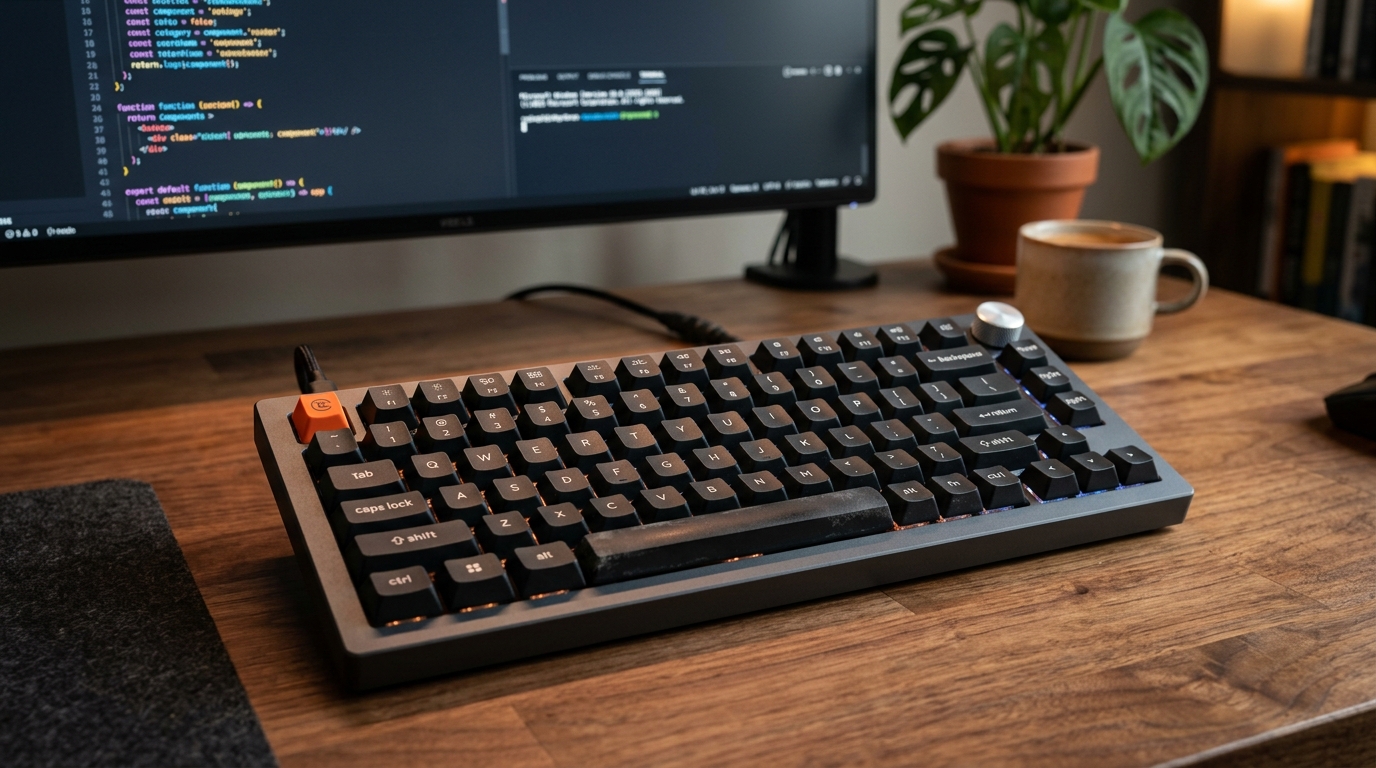
Optimizing the Build-Test-Debug Loop: Mapping Android Studio Hotkeys with the Keychron V1 QMK/VIA Keyboard